|
 |
 |
|
|
| |
Trade
Tricks: Custom Screensavers
These Simple Utilities Are Important For
Protecting Your Monitor And Are A Great Way To Show Off Your
Pictures And Personal Style
By Niceole Levy |
|
| |
|
|
| |
|
|
| |
| Built
into your computer is a great tool for showcasing some
of your favorite photos—the screensaver. With just
a few clicks, you can make a personalized screensaver
that uses your favorite pictures. Windows
XP (www.microsoft.com)
users can create a screensaver in minutes. |
|
|
|
|
|
|
|
|
|
|
|
|
| |
 |
|
| |
|
|
| |
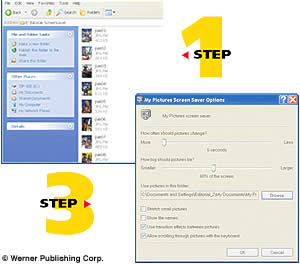
1
Copy the photos you plan to use to a new folder in your My Pictures
file. Save the images in the order you’d like them to appear
and name the folder something easily recognizable.
2
Go into your Control Panel. (Where your display controls are
located depends upon your XP preferences, but look for either
Appearances/Themes or Display.)
3
Click the Screensaver tab, then scroll down the menu of available
options until you find My Pictures Slideshow and choose it.
4
Select Settings, then click on the Browse command to look through
your photo folders until you find the one you want.
The Settings menu screen allows you to set the pace of the image
changes and add or delete special-effect options, and the easy-to-use
slide tool lets you resize your photos to the size you’d
like them to appear on-screen. When you’re done, save your
work, then click Preview to see your screensaver in action.
To change to a new set of images, simply return to the Settings
screen and use the Browse command to locate the folder you’d
like to switch to.
If you’re not working with XP, take a look at your imaging
software. Jasc After Shot
(www.jasc.com)
makes creating a personalized screensaver easy. Copy the images
you want to use into an album file and name it. With the file
open, go under Tools and click Set Screensaver. The program
will ask if you want to set the selected file as your screensaver.
Click Yes, and you’re in business. Like XP, After Shot
loads the screensaver file to your Control Panel menu, so it
will run independently of the program. To change to another
set of images, open that album, select Set Screensaver and After
Shot automatically changes to the new photo group.
ACD Systems’ FotoAngelo
1.1 (www.acdsystems.com)
is a slide show/
screensaver builder that lets you create files for your own
system as well as executables you can share. Once you load the
images, choose Create a Screensaver. It will ask if you want
to make a .scr file or an executable (.exe) file. For .scr files,
be sure to save it to your Windows file so it will load as an
option in your Screensaver menu. CompuPic
Pro Version 6.0 (www.photodex.com)
also allows you to select a folder of images for use as a screensaver;
however, the program must continue to run in order for the screensaver
to engage.
If you’re not working with a program, do a Web search using
“screensaver.” You’ll find sites where you can
download inexpensive software specifically designed for building
screensavers, some of which let you create files you can share.
So get creative and replace that old standard screensaver. It’s
an easy way to let your photographic style shine. |
|
| |
|
|
| |
|
|
|
|
|
|

Home | Articles
& Reviews | Current
Issue | Past Issues
Staff & Contributors | Photo
Books | HelpLine
| Glossary
Advertiser
Info | Links | Shopper
| Subscriptions | eStore
Account Inquiry | Submissions
| Contact Us | About
Us
| Privacy Statement
|
|
Click here for

























|